01
Create a free account
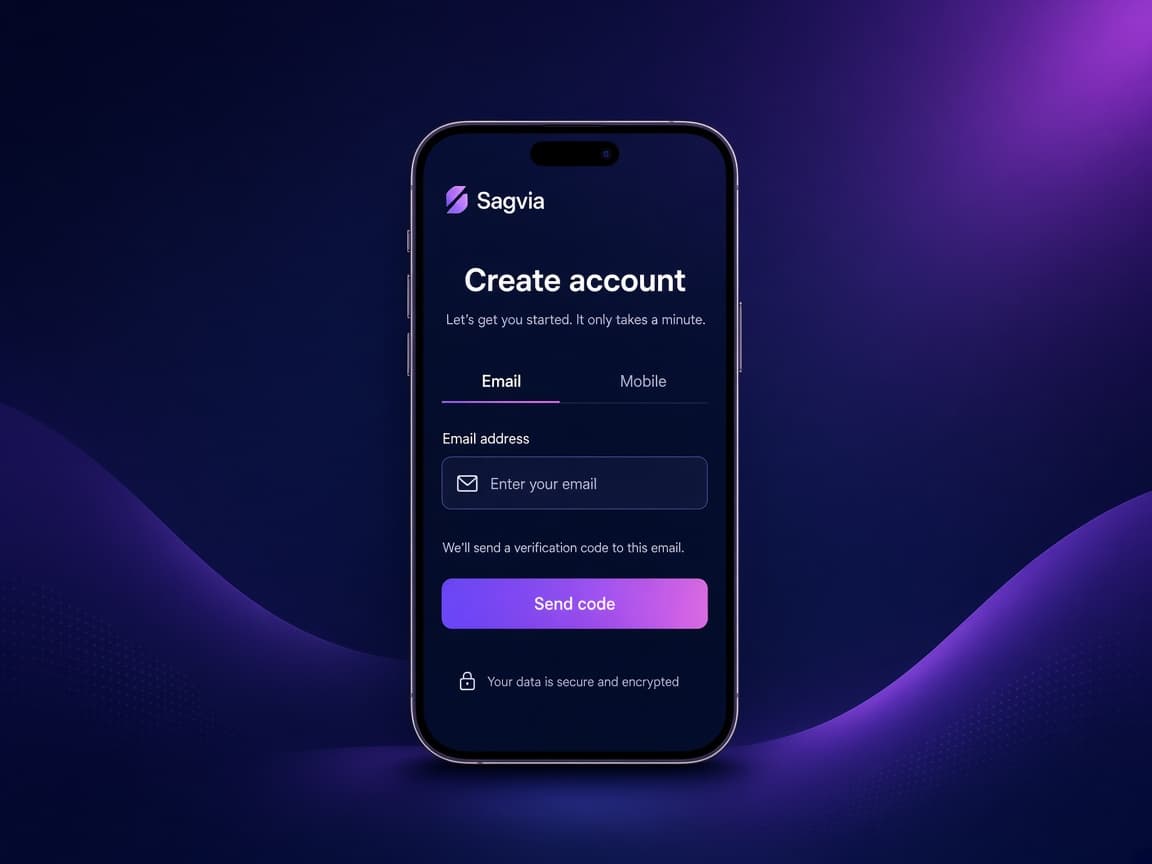
Open Sign up and use your email or mobile number. Sagvia sends a one-time code. Enter it once — that is your login. No password to remember.
Share this page
A short visual walkthrough you can send to someone instead of explaining it. Owners register a plate so they can be reached. Anyone can scan a plate and message the owner — without seeing private numbers.
Four steps. Takes a couple of minutes. Your contact details stay hidden unless you choose otherwise.
01
Open Sign up and use your email or mobile number. Sagvia sends a one-time code. Enter it once — that is your login. No password to remember.
02
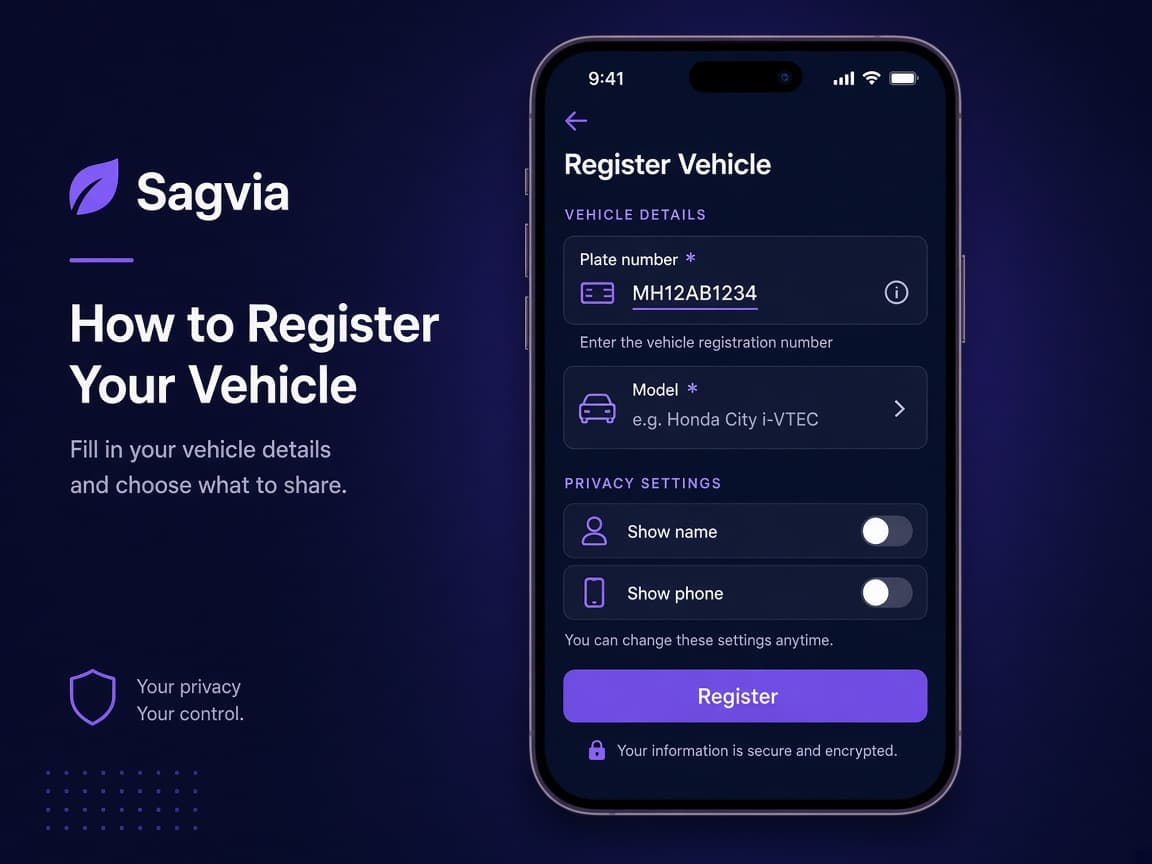
Add your number plate and optional model. Privacy stays off by default: your name, phone, and WhatsApp stay hidden unless you turn them on for that car.
03
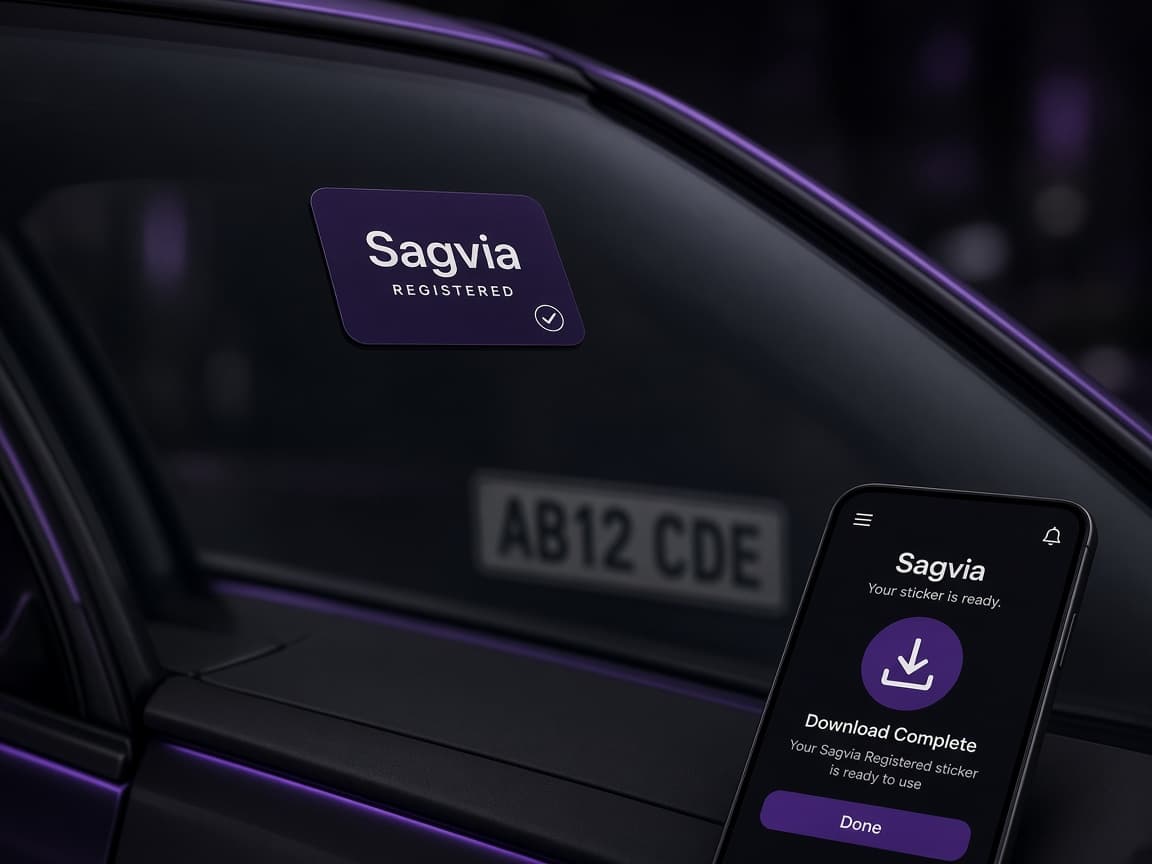
Download or print the Sagvia mark — about 4 cm wide — and place it on a lower windscreen corner. It tells others this car is registered: they can scan the plate on sagvia.com and message you.
04
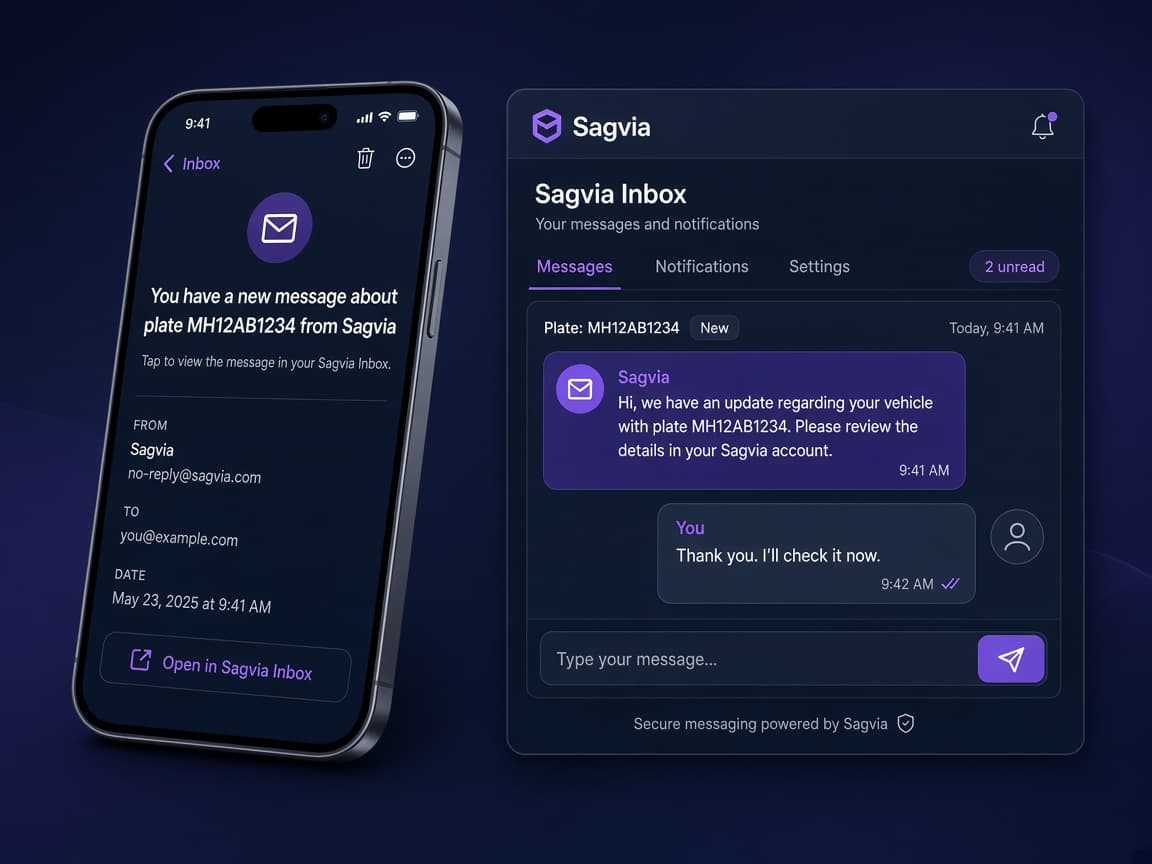
When someone writes about your plate, Sagvia emails you (if an email is on your account). Open the link or your Inbox on sagvia.com to reply. Your number stays private unless you chose to show it.
No account required. Scan the plate, send a message, and continue the chat from the link you get.
01
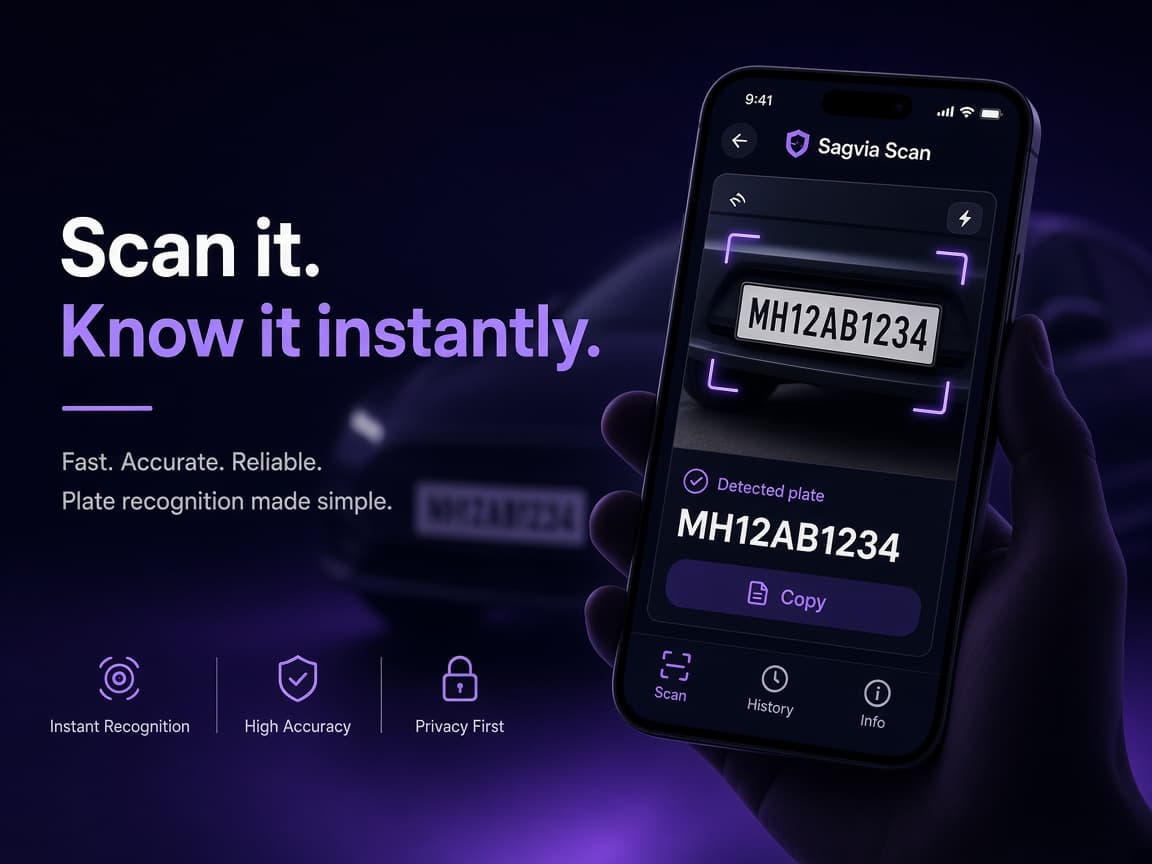
Open Scan. Photograph the plate or type it. Sagvia looks up whether that vehicle is registered. You do not need an account to do this.
02
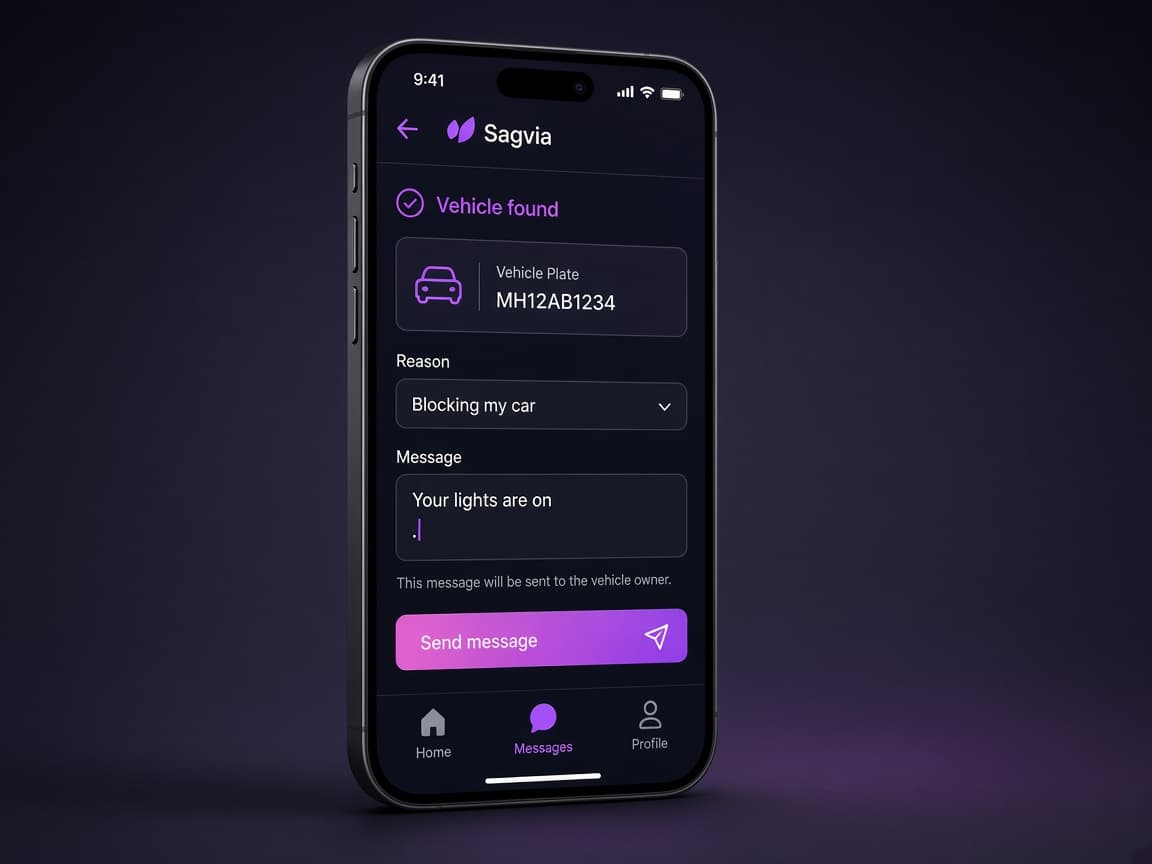
If the car is registered, write why you need the owner — blocking, lights on, emergency, or a general note. Leave a way they can reach you back.
03
You get a conversation link. Replies show in Chats on this device. The owner is notified by email and can answer from their Sagvia inbox.